.................................. Return to Sumner's Home Page....
Return to N Scale RR Main Menu........ Return to DCC++ Menu
=========================================
..............Return to DCC Menu..............................Next Page If There Is One
=========================================
…..............................--- 2 Pot 12 Key Bluetooth Throttle ---
========================================
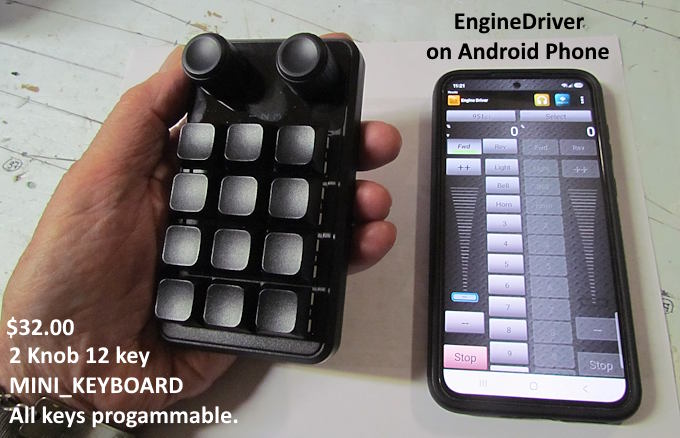
This is an under $35 wireless (Bluetooth) throttle than connects to EngineDriver running on an Android phone or tablet. It connects wirelessly using the built-in Bluetooth in the keypad.
For $32 you have a wireless throttle to run your DCC train with buttons and knobs. You connect the throttle to a loco using EngineDriver. Then you lay the phone down or put it in your pocket with EngineDriver running. You can now run the train with the Bluetooth throttle or pass it off to a child or friend to run the loco.
You also have the option to use your phone to run one or more additional locos while they use the Bluetooth throttle to run their loco. Using EngineDriver create one or more additional throttles (they will show on the screen --- right side of the screen above). I bought mine at the Amazon link ( HERE ) but you can also find them by doing a search ( 12 Key Macro Pad ).
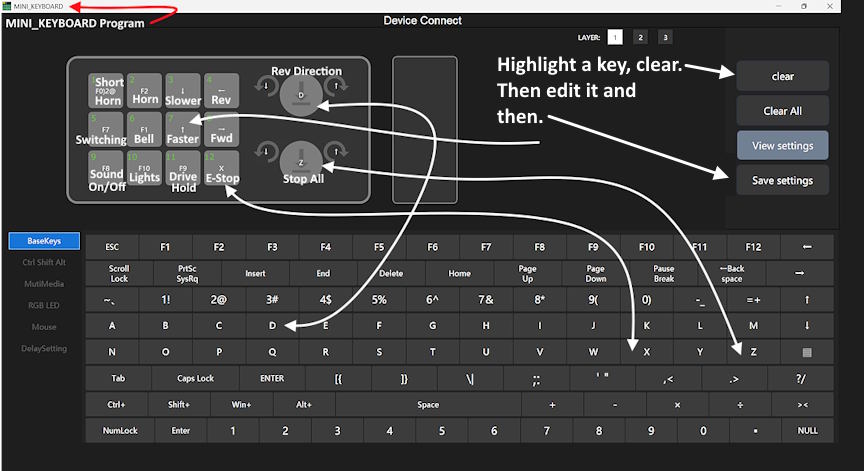
The keys are all programmable using the ....
...... the MINI_KEYBOARD program shown above. Download it ( HERE ) ..... and watch the ...
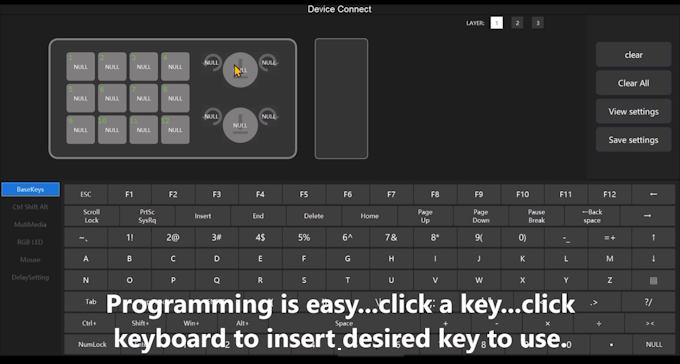
..... video above or ( HERE ) if you are having problems with doing the download.
================ Programming the Keys ==================
You can program the keys to a number of options. When you press a key it will then send what the key is programmed for to EngineDriver via the BlueTooth interface (you need to pair the device to your phone with Bluetooth and Bluetooth has to be on with your phone---when we get to that step).
In the video that shows how to program the keyboard above and ( HERE ) I used the following options to program the keyboard.
Left Arrow = Reverse Direction -------------------------------------------- Right Arrow = Forward Direction
Up Arrow = Increase Speed ------------------------------------------------- Down Arrow = Decrease Speed
X = E-Stop the current Loco ------------------------------------------------ Z = Stop all locos that are running
D = Toggle direction between Forward and Reverse (Loco has to be stopped. Has to be stopped also for Left/Right Arrows also).
F1 = Bell ------------------- F2 = Horn ------------------ F10 turns light On/Off (normally this is F0 but use F10 and it will work).
F8 = Turns sound on/off ---------------------------------------------------- F9 = Drive Hold
NOTE: Some of the above (F8 & F9) are for my situation and might not work for yours. You can also use functions beyond F9 using information in the link provided next/below. The keyboard has 3 levels that are easy to toggle through with a button on the side. You can assign other commands or sound functions to those layers also using the MINI_KEYPAD programmer.
There are a number of other keyboard commands that you can explore ( HERE ). Some of those will work with the keyboard and some won't. To try one reprogram one of the NULL keys or a key you want to reprogram. You can do this in a few minutes so give it a try. Also Peter is working on new commands for EngineDriver so consider updating to newer versions as they come out.
When the next Beta version is released you will also have the option to program keys to power track power on/off and time a short horn to an interval of 0 to 10 seconds (I have mine set to under 1 second):
e = toggle all track power on/off ............................................. r0 = toggle all track power off & r1 = toggle all track power on
y0 to y7 = toggle DCC-EX track district A-H on/off
k00 = track A off to k70 = track H off ...................................... k11 = track A on ... to ... k71 = track H on
In addition to the above commands Peter and Steve are adding features to EngineDriver all of the time so keep updating the software.
================ Using with EngineDriver ==================
1. Update to newest version of EngineDriver using the Android Play Store. Some of the following might not work with earlier versions.
2. Connect to EngineDriver (ED from now on)
3. Go to 'Preferences' (top right on screen) and then click on "Show Advanced Preferences".
4. Scroll down (quite a ways) to "Gamepad/USB Preferences" then click on "Gamepad/USB type" and select "keyboard" (near the bottom).
5. If you also want to change how many speed steps the throttle moves up or down on each click of the knob or keypad to to "Speed button Change Amount" and change from the default 4 to the value you want. You also need to change this one other place (see further down).
================== Connecting EngineDriver and Gamepad =======================
1. Using "Settings" on your phone make sure you WiFi is connected to the internet connection of your command station.
2. Also with "Settings" make sure Bluetooth is turned on and connected/paired with MINI_KEYBOARD
3. Open EngineDriver and "Select a Loco" and make sure track power is on.
4. Try any key on the keyboard.....a screen should come up and at the top a code will show for the key you are pushing. This is a test that you can turn off back in "Gamepad/USB Preferences". For now press "Skip" at the bottom of the screen. The test will let you know if the keyboard is being seen.
5. The keyboard should now be working for the engine selected. You can keep using the keyboard or pass it on to someone else. In either case you can open another throttle with EngineDriver and run another loco/locos using the phone while the keyboard controls the first loco selected.
============= The Following is optional but you probably want to do some of this. ======================
1. Back to the main screen go to "Preferences" again and then to "DCC-EX Function Settings" if you have a DCC-EX Command Station.
2. In the example I showed on programming the keys above I had F8 as Sound On/Off and F9 as Drive Hold. I need to have them latch on when the key is set so at this point I went to 8 and 9 on the screen and set them to "Latching"
3. I also change the speed step value from 4 to 1 in my case. If you changed it under the "Gamepad/USB Preferences" go to "Preferences" here and scroll down to "Speed button Change Amount" and put in the same value you had under "Gamepad/USB Preferences"
4. The last item I change at this point is further up at "Layout Power button" I turn it on so that it is displayed with all of EngineDriver's screens all the time allowing one to always be able to cut track power quickly.
==================================== You are Done ===================================
If you have questions post them on the forums I'm on or email me at contactsumner1 (at) gmail (dot) com.
=========================================
...........................On..............e.........Next Page If There Is One